




ToxiUI Installation Guide
Installing ToxiUI is as easy as installing any other AddOn, but here we will cover the most important parts for a smooth experience. If you prefer visuals over text, we also have a video below.
Step 1 - Understanding the folder structure
One of the most common mistakes people encounter when installing AddOns, is not realizing that they have multiple World of Warcraft installations.
To avoid any issues, here’s how to properly locate your installation folder.
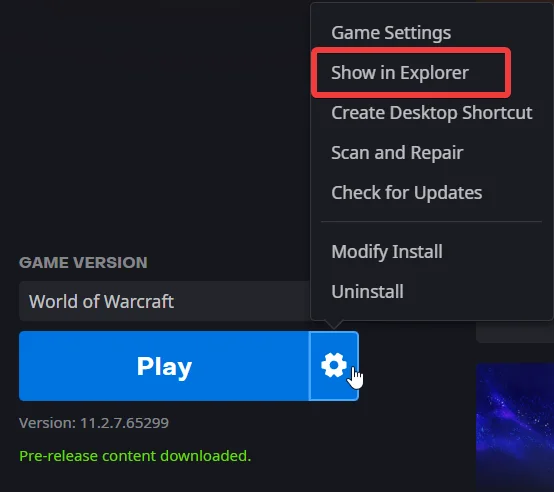
- Open the Battle.net launcher
- Select World of Warcraft
- Click the settings cogwheel
- Press Show in explorer
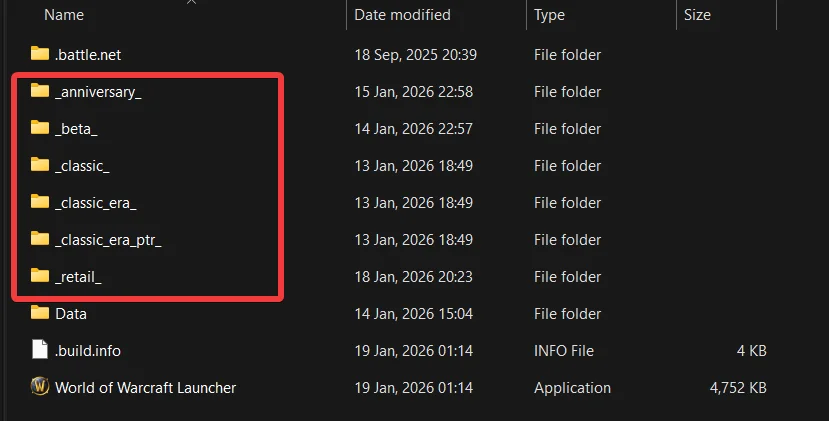
In your main folder you will see multiple folders with version names. As of now, these folders collerate to these game client versions.
_retail_Copied!_classic_Copied!_classic_era_Copied!_anniversary_Copied!
Step 2 - Backing up your data
Once you’ve understood the folder structure, you need to make backups in case something goes wrong, or you change your mind and want to revert to what you had before without much hassle.
- Make sure the game is turned off
- Go back to your World of Warcraft directory and open the correct version folder (eg.:
_retail_Copied! - There you will see the
WTFCopied! - Either rename it, to something like
WTFoldCopied!- If you choose to rename it, be aware that all of your game settings will be reset to default.
- The upside though is that you will start on a fresh clean state without any possible conflicts.
- Done, you’ve backed up your data!
Step 3 - Choosing an AddOn Client
Installing AddOns manually is a pain in the ass, especially when the AddOn consists of several mini-addons. To alleviate that pain and avoid any potential conflicts, we recommend using an AddOn client.
What you choose is up to you, but here are my two recommendations:
- WowUp (CurseForge version): This will handle all of your AddOns that are hosted on CurseForge and it will also allow you to download ElvUI, since it is not on CurseForge.
- Do note that you need the latest
betaCopied! - Because of that, you might choose the second option of clients below.
- Do note that you need the latest
- CurseForge Standalone + TukUI Client: This option is more stable and reliant with the downside of having two separate clients that you need to check before running World of Warcraft
- The TukUI Client also makes regular backups and is the most up-to-date source of truth for installing ElvUI, because it is maintained directly by ElvUI team.
There are many other options that you could choose, like Cursebreaker etc. but these are the most popular ones. Ultimately it doesn’t matter.
Step 4 - Installing AddOns
Now that you’ve selected a client to manage your AddOns, here comes the fun part. Installing the AddOns!
For ToxiUI’s list of required AddOns, please refer to the CurseForge download page, as that will have the most updated information.
Regardless, here’s the list.
Required:
Optional but highly recommended:
- Details! Damage Meter
- ElvUI WindTools (Retail only)
- BugSack + BugGrabber
- For handling Lua errors
Other nice to have AddOns:
Step 5 - Installing ToxiUI Profiles
Once you have installed all your AddOns, it’s time to login to your character.
If this is your first time using ElvUI and the other AddOns, your screen will probably be cluttered with a lot of windows. Don’t worry. Simply open chat and type/reload Copied!
After you reload, the ToxiUI installer should show up on your screen.
All you have to do now is just read the information provided in the installer and select the options. We also highly recommend creating a new profile in Step 2!
Once you’re done with the installer, your UI will reload and you are ready.
Additional information
Once you’re done with the installation process, we highly recommend you to visit our F.A.Q. page to answer the most common questions new players have.
We also highly encourage you to open the ToxiUI settings via the/tx Copied!
If at any point you want to run the installation process again, you can do so via the General tab of ToxiUI settings or by chat command/tx install Copied!
If you encounter any issues, make sure to join our Discord server which has the most updated information and is the best place to receive help.

Written by
Toxi
I like trains.