



WeakAuras Guide
Important Disclaimer
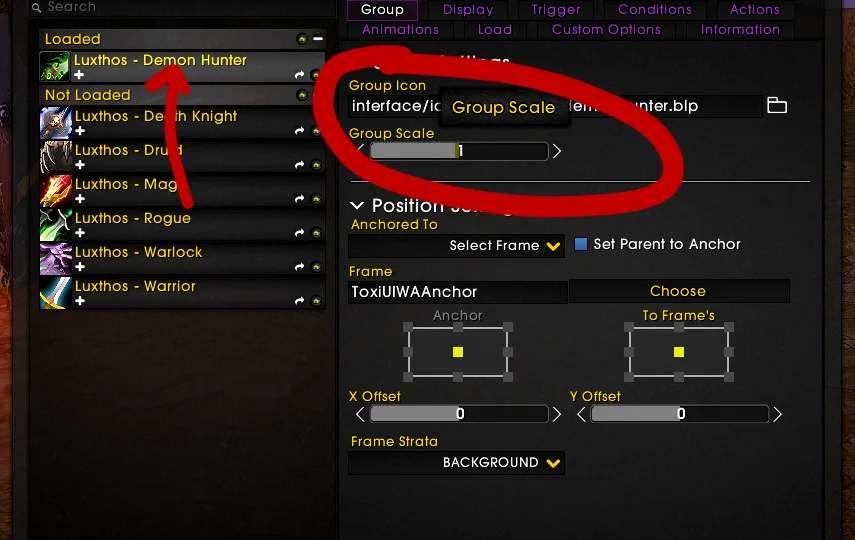
Due to the fact that from ToxiUI 6.0.0 we are utilising Pixel Perfect scaling, each resolution has a different UI scale. WeakAuras do not fit perfectly on resolutions other than 1440p! To accommodate that, you can do either one of these things:
- Move the UnitFrames via
/moveuiCopied! - Change the Group Scale of your WeakAuras package:
- Open up the
/waCopied! - Select the main parent group
- Go to the Group tab
- Reduce the Group Scale
- Open up the
- Reduce all of the icon sizes to make the whole package smaller
Initial Import
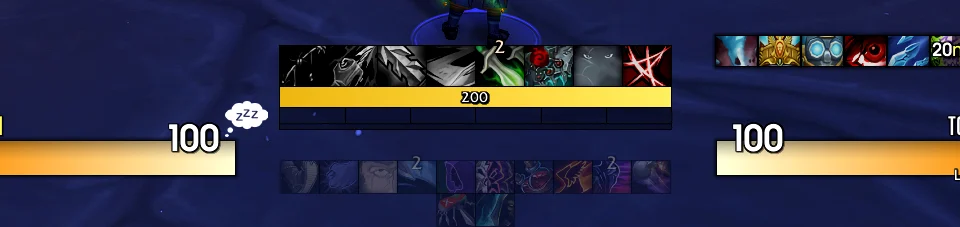
When you initially import a WeakAuras package (preferably Luxthos) you will notice that they look... out of place? Well, one of the reasons is that we no longer provide skinning support for WeakAuras. The other reason is that we need to do some tweaking to achieve perfection! Continue reading to learn how!
Anchoring the WeakAuras
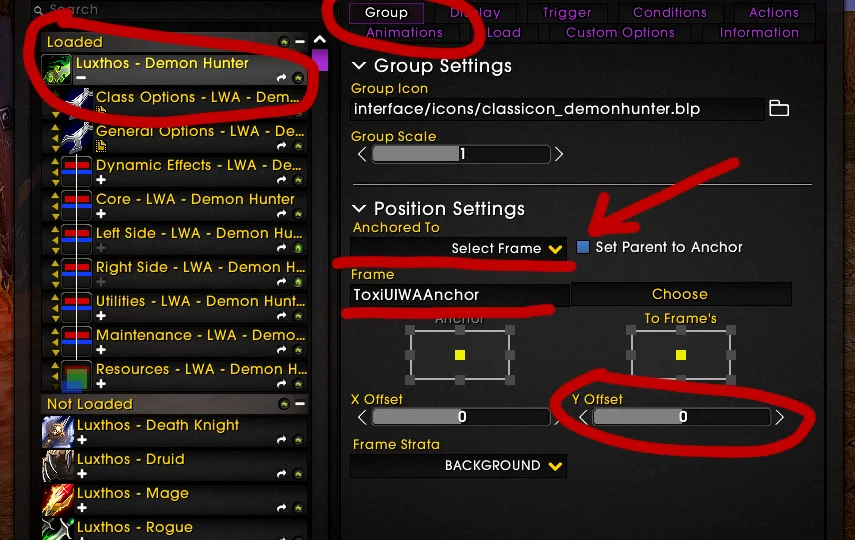
For the WeakAuras to fit in with the rest of ToxiUI an important thing is anchoring them to our own custom-made ElvUI anchor: ToxiUIWAAnchor Copied!
- Open up the
/waCopied! - Select the main parent group
- Go to the Group tab
- In the Anchored to dropdown, choose Select Frame
- In the Frame field type in
ToxiUIWAAnchorCopied! - Make sure that Set Parent to Anchor is Enabled
- Adjust the Y Offset value.
If you're on 1440p resolution and using Luxthos WeakAuras package, the Y offset should be 0. For other resolutions & WeakAuras packages, the Y value will obviously be different.
If you want your WeakAuras to stop fading but still move with different layouts, disable Set Parent to Anchor!
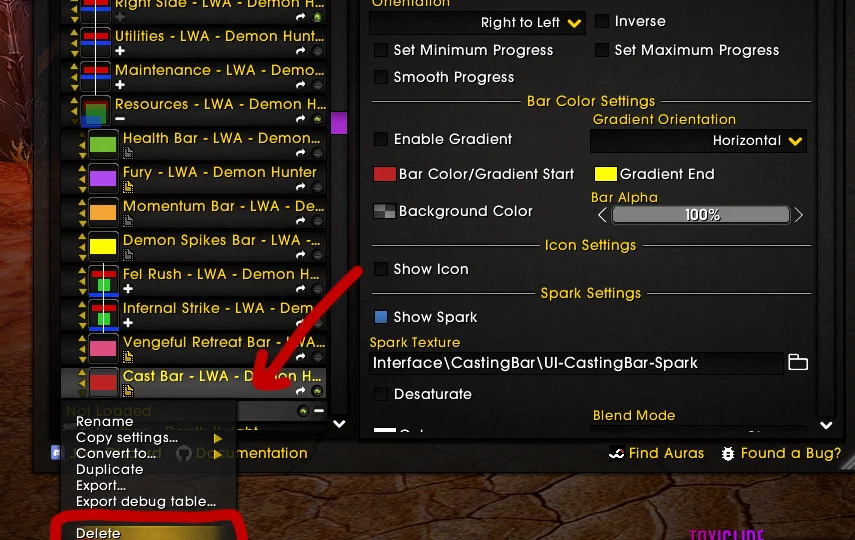
Disabling the Cast Bar
Most Weak Auras packages come bundled in with a Cast Bar, but we feel that the ElvUI's Cast Bar has all the functionality needed and on top of that, it's already customised. Therefore we disable Weak Auras Cast Bar:
- Open up the
/waCopied! - Select the Cast Bar WeakAura
- Right-click it
- Select Delete; or you can go to the Load tab and select Never
Changing the Bar Texture
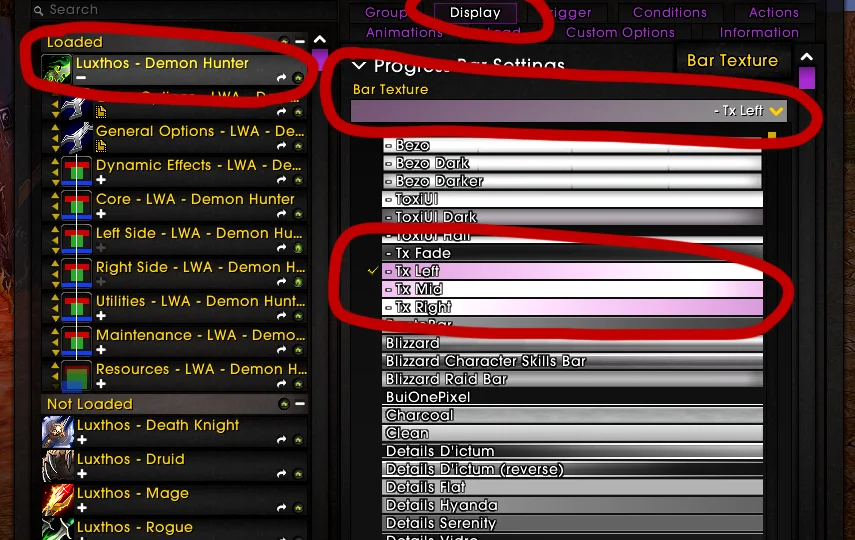
The main and one of the most attractive feature's of ToxiUI is the Gradient Mode. While we do not apply Gradient Mode to WeakAuras, you can easily replicate that with the textures we provide:
- Open up the
/waCopied! - Select the main parent group
- Go to the Custom Options tab
- Under Global Style, change the Resource Bar Texture to either of these:
- Tx LeftCopied!- Tx MidCopied!- Tx RightCopied!
Icons & Borders
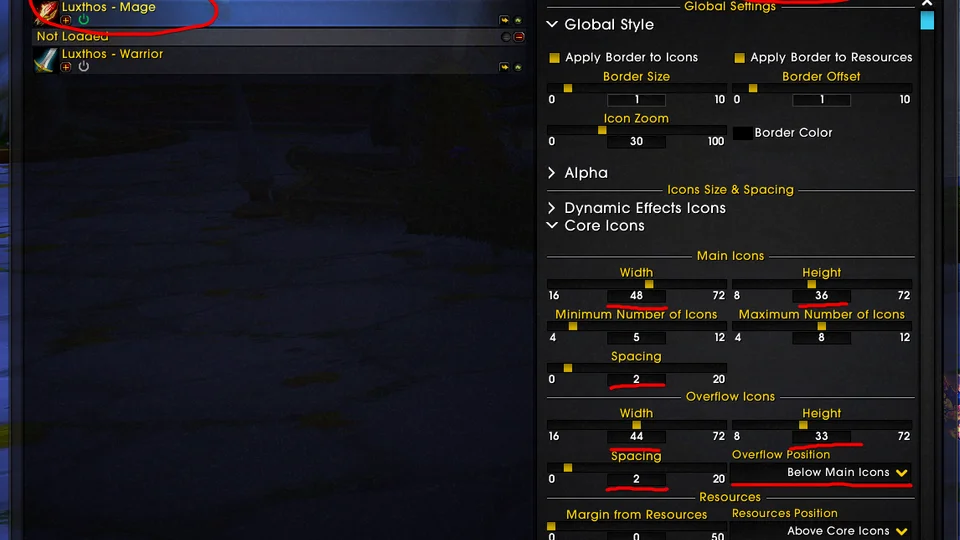
Here we are, this is the end. Since we no longer provide WeakAuras skinning, you have to add borders and change the icon aspect ratios to fit in with the UI! If you're using Luxthos WeakAuras, you're in luck, because this will take at most 20 seconds:
- Select the main parent group
- Go to the Custom Options tab
- In the Global Style dropdown increase the Border Size to 1
- In the Icons sections, you have to change width & height to represent a 4:3 ratio
- Increase the spacing for each of the icons to
2Copied! - Change the font for each icon group to
- ToxiUICopied!
These are the sizes I use for each category of icons:
- Dynamic Effects Icons:
40 x 30Copied! - Core Icons:
48 x 36Copied! - Overflow Icons:
44 x 33Copied! - Side Icons:
We don't use theseCopied! - Utility Icons:
40 x 30Copied! - Maintenance Icons:
40 x 30Copied! - Every icon spacing:
2Copied! - Every font:
- ToxiUICopied!
We also need to change the positions of our bars & icons:
- Go to Custom Options
- Under Core Icons make these adjustments:
- Set Overflow Position to Below Main Icons
- Set Resources Position to Above Core Icons
If you're not using Luxthos WeakAuras, well.. You'll have to do it manually...
Resource Bars
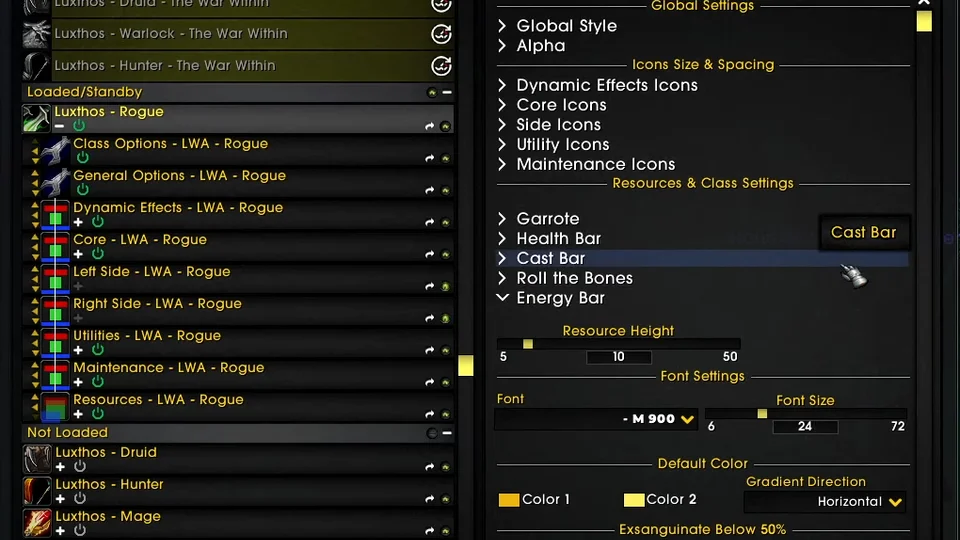
Last step is to adjust the resource bars and that can also be achieved via the Custom Options. Scroll down to the Resources & Class Settings section, and make these changes to each resource bar:
- For your primary resource (energy, runic power, rage, fury etc.)
- Change the font to
- M 900Copied! - Change the font size to
24Copied! - Change the height to
10Copied!
- Change the font to
- For your other resources:
- Change the font to
- ToxiUICopied! - Change the height to
10Copied!5Copied!- The height depends on how important it is to see that bar
- Change the font to
Finally, we need to offset our primary resource bar's text slightly higher.
- Go to the Resources group in the main group
- Select your primary resource bar
- Go to the Display tab
- Scroll down until you see a Text section
- Expand the Anchors section, and change it to these settings:
- Anchor Bottom
- To Frame's Background
- Top
- Y Offset:
-5Copied!
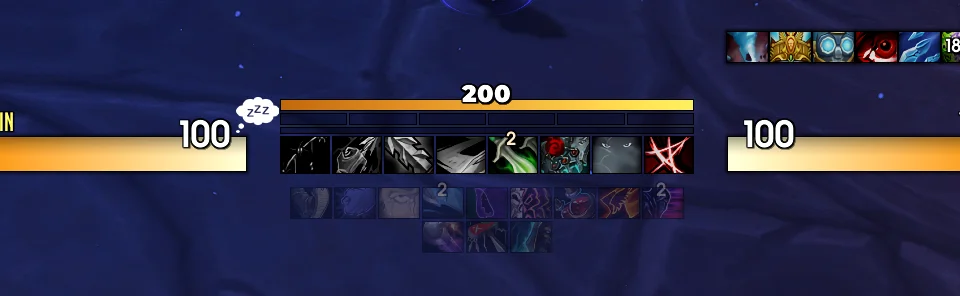
Final result
After all of that customisation, voila, you’re done!

Written by
Toxi
I like trains.